Canva
Browser 1280x720 YouTube thumbnail maker with templates, headline text, and JPEG or PNG export so a faceless still can be read in a crowded feed.
What it is
Canva is a browser design editor with a dedicated YouTube thumbnail maker. You open a 1280 x 720 canvas, drop a still, stamp a headline, export JPEG or PNG. That is the job for a faceless channel.
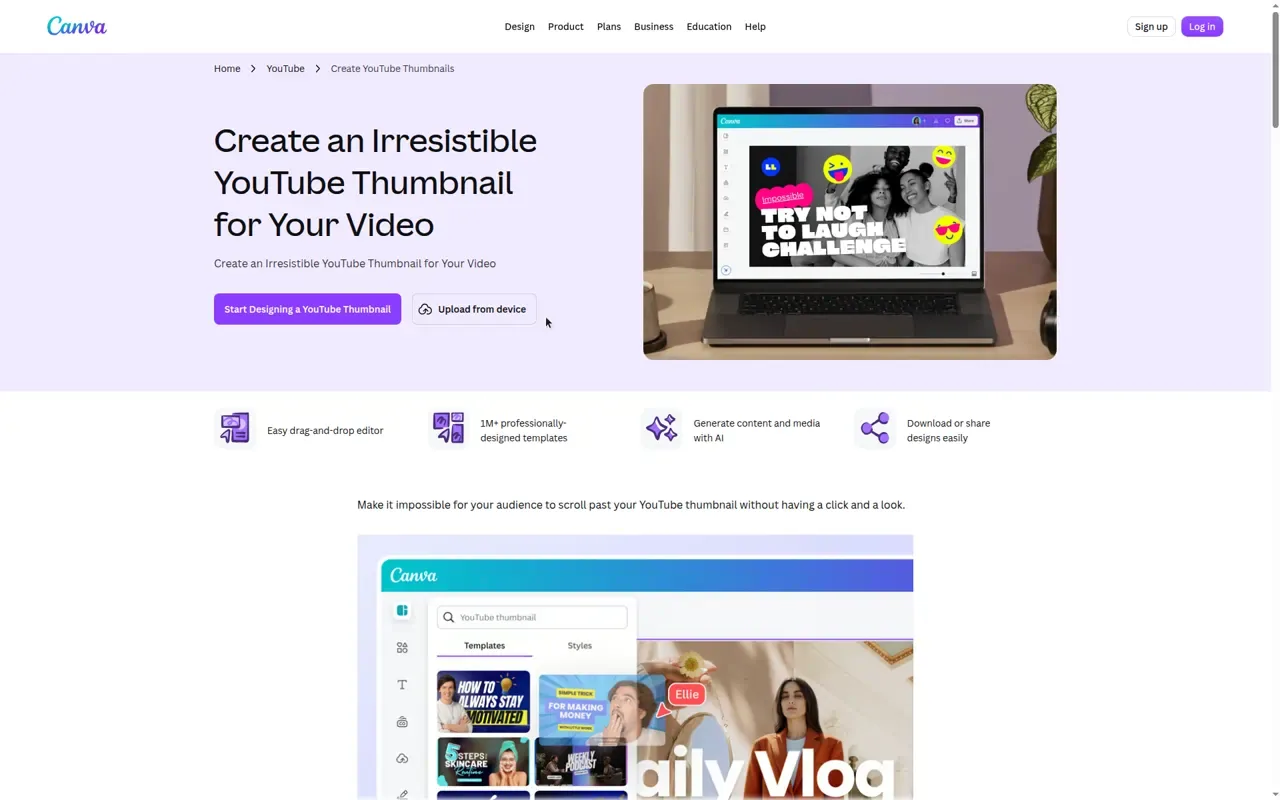
The official maker is at canva.com/create/youtube-thumbnails/. Title: “Free YouTube Thumbnail Maker - Design a Thumbnail in Canva.” It is a drag-and-drop editor. The page lists 1M+ professionally-designed templates (site-wide), device uploads, AI media generation, and download or share. The YouTube thumbnail template gallery (canva.com/youtube-thumbnails/templates/) is titled “Free and customizable YouTube thumbnail templates” and showed 20,110 templates when fetched, plus a blank YouTube Thumbnail.
Do not treat this as a thumbnail-only product. The homepage is “Canva: Visual Suite for Everyone.” You are using one preset inside a giant editor. For Unseen Stack, ignore Docs, Presentations, and merch. Stay on the still.
Who it’s for
Use it if you publish faceless YouTube (and reuse the same still language on TikTok covers) and the bottleneck is a title people can read at feed size. Canva’s own FAQ says a good thumbnail is the right size, a high-quality image, and title text. That is the whole game: contrast, a clean font, and a line that matches the video.
Skip it if you want a one-click CTR oracle. This is an editor. Templates will look like every other Canva channel until you rewrite the type and swap the photo. Also skip the paid jump if Free already exports a 1280 x 720 JPEG you can upload. Pro is for Brand Kit, unlimited background removal, Magic Resize, and extra AI, not for the canvas itself.
Standout details
- Official size: YouTube thumbnails are 1280 x 720 pixels, 16:9, minimum width 640 pixels, max 2 MB. Canva’s YouTube size guide (canva.com/sizes/youtube/) repeats 1,280 × 720 px and “up to 2MB.” JPG, GIF, and PNG are supported on YouTube’s side. Canva’s maker exports JPEG (smaller file) or PNG (higher quality).
- Title text is first-class. The maker page tells you to add a headline and pick from a wide selection of fonts and icons. FAQ best practices: clean readable font, brand colors, contrast, accurate content. That is the faceless brief.
- Photo tools on the maker page: upload a snapshot, then brightness, contrast, presets, and reusable filters. Upload photos as JPEG/JPG, PNG, HEIC/HEIF, or static WebP, under 50MB and not more than 250 million pixels. Videos (if you grab a frame) accept MOV, GIF, MP4, MPEG, MKV, WEBM up to 1GB.
- Magic Studio on the same page: Magic Eraser, Magic Edit, Magic Grab, and Magic Expand are labeled PRO. Dream Lab and Magic Media are labeled FREE. Magic Media is the “turn your words into images” path. Use it for a background, then put your own title on top. Do not ship a raw AI still as the thumbnail.
- Background Remover (canva.com/features/background-remover/): one-click image background remover. Official copy: “Sign up for Canva Pro for unlimited usage and access to more tools like Video Background Remover.” Useful when a subject needs to sit on a high-contrast block behind the title.
- Brand Kits (canva.com/help/brand-kit/): logos, colors, fonts, and assets in one place. Creators with admin or brand-designer roles on Canva Pro, Teams, Business, or Education can create multiple kits. This is how a faceless channel stops reinventing the red bar every upload.
- Magic Resize is a Canva Pro feature (canva.com/pro/magic-resize/). Official line: use it to resize, transform, and translate designs. Magic Switch “instantly resizes your design into many different sizes” for all channels. That is the YouTube 16:9 still to a TikTok-sized frame, not a separate TikTok thumbnail product. The old /features/magic-resize/ URL 404s. The live URL is /pro/magic-resize/. The short path /youtube-thumbnails/ also 404s; use /create/youtube-thumbnails/.
- Collaboration: the maker page advertises real-time comments, tags, and feedback. Fine if an editor and a writer share a file. Irrelevant if you are a one-person channel.
- Plans named on the official pricing page title: Free, Pro, Business, and Enterprise. Footer on product pages: “Download Canva for free.” Pricing HTML is JavaScript-rendered, so this listing does not publish a dollar figure. Check the live page before you pay.
Honest verdict
Use it. For a faceless feed, Canva is the default stills bench. Free gets you the correct 1280 x 720 canvas, templates, headline type, and a JPEG or PNG you can upload. That is enough to ship a readable title tomorrow.
Pay for Pro only when the free editor is slow: you need a saved Brand Kit, unlimited background cuts, or Magic Resize into other aspect ratios. Do not pay because the homepage is loud about AI. The click still comes from a short line people can read on a phone, not from Magic Studio.